

Computer Accounts
Initial Setup (network, email, myTSU, etc.)
SYSTEMS YOU HAVE ACCESS TO
As a student/employee at TSU, you will automatically have an account on the following systems. (Exception: eLearn is setup automatically only for students.)
Your same username and password will allow you into all of the following systems. But please take note of what you need to do to initialize each system.
-
Network/Windows - (used for logging onto TSU network; Remote employees use Citrix.)
To use any system on campus, you must first login to the network!
-
myTSU - (myTSU is the web-portal at TSU and is used for course activity, student financial info, grades, and employee HR functionality)
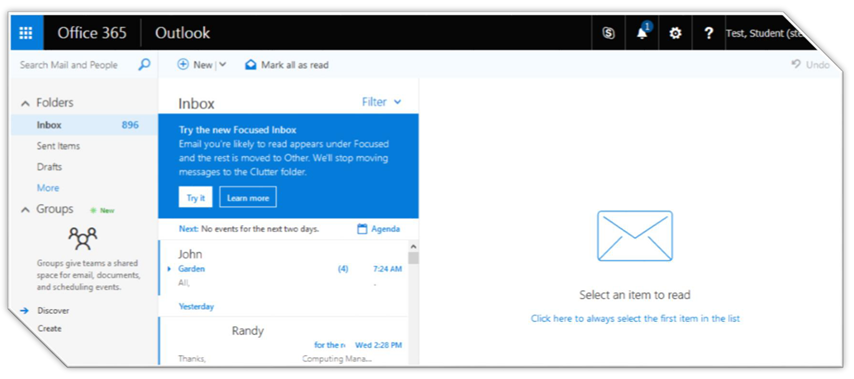
- Email (Office 365) - the email system for TSU students and employees. All official TSU correspondence will be sent to this address.
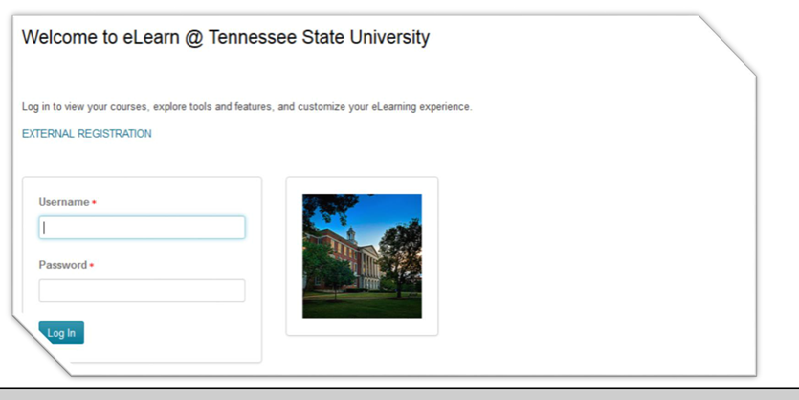
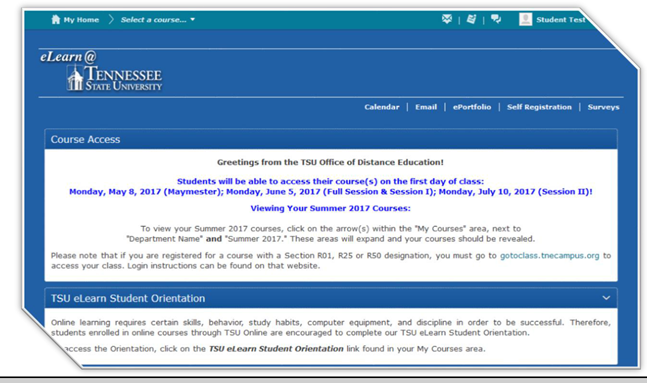
- eLearn (online learning system; online courses) - All students have an account on eLearn; some employees do.
- Website Editor Account- Each department manages the content on their departmental website. Each department should have two web editors, a primary and a secondary (backup) editor. To request a web editor account, please submit the New Web Editor Form.
HOW TO SETUP ---
STEP 1 - GET FAMILIAR
LOGIN/PASSWORD: The same login and password are used for all 4 systems -- the campus network, email, myTSU, and eLearn.
Office 365 LiveMail: Please note that you must initially reset your password in order to enable your email account. Details are in the listing further below under "Email".
Set-up Passwords. Information on each system and how to setup your password for each system is listed below. Follow the instructions for "Network/Windows" first because, if you are on-campus, you must be able to log-in to the network before you can log-in to any other systems.
STEP 2 - SET YOUR PASSWORDS
Simply follow the instructions for each system mentioned below --
Network / Windows |
|
Used to access computers on both the main & downtown campuses of TSU ...allowing students to login to the TSU network to access the
When you begin to use any computer on campus, the PC will prompt you to login to the network first.
This is the first log-in you encounter while on campus --
Initial password:
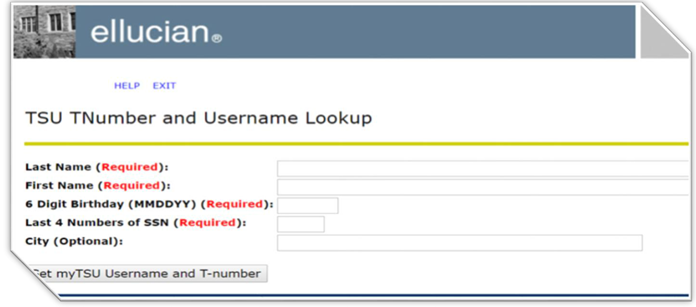
Full Tnumber + lower-case-first-letter-of-last-name + DOB in MMDDYYYY format. Example of a person with the last name of Williams and a birthday of Jan 1, 1999. To Retrieve Your T-Number Visit www.tnstate.edu/tnumber and click "Retrieve Username & T-Number" Enter your personal information and click "Submit".
Password reset:
After you have reset your password, your new password applies to your eLearn, Windows Live, and Campus network accounts. All three systems use the same username and password.
|
myTSU |
|
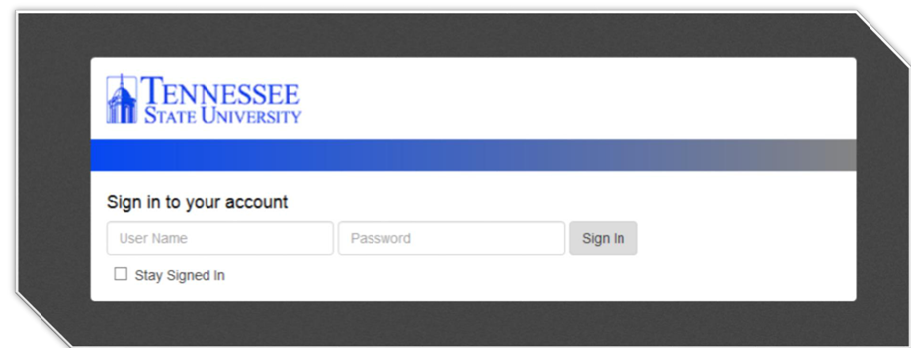
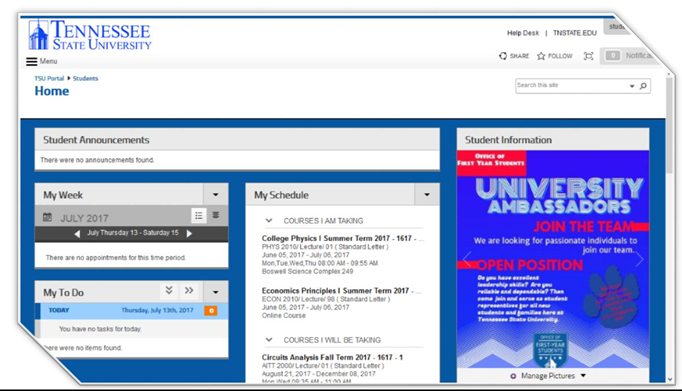
myTSU is the TSU webportal and is used to register for classes, check grades, check account balances, pay bills, access email, etc. Uses the same username & password as the network accounts. Password reset: Forced reset at the first login, and required to be reset every 180 days (the system will notify you when it needs to be reset.) Access myTSU: www.tnstate.edu/mytsu How to login to myTSU -- doc
myTSU Home View
|
Email
|
|
New and Returning Students – You MUST reset your Network password first in order to access your email account.
HOW TO RESET NETWORK ACCOUNT: After you reset it, be sure to write it down or remember it! *Note: your Network password is also your email password. NEXT...login to your email account to ensure you have access:
STUDENTS:
EMPLOYEES: For mobile access, be sure to download the Microsoft Outlook App on your Apple or Android device. Password is based upon your T-Number: Full Tnumber + lower-case-first-letter-of-last-name + DOB in MMDDYYYY format. Example of a person with the last name of Williams and a birthday of Jan 1, 1999.
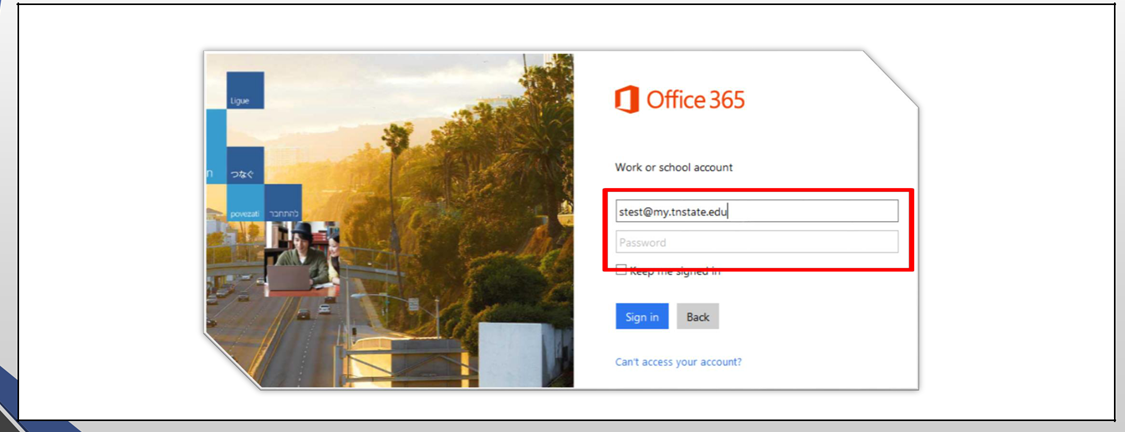
Microsoft Office 365 Home View
How to Login >>
|
eLearn |
|
Online Course Management System NOTE: New students who have not used eLearn before must change their initial password before they will be able to access the eLearn system. To do so, follow the instructions below. NOTE: Your initial eLearn account username / password is the same as noted in the section above. If you've already changed/reset it, then you'll want to use what you changed it to, naturally. If you have logged onto a TSU campus computer previously, your eLearn password will be that same password. If you have never logged onto a TSU campus computer, you must set a new password first at Reset Password. *** After you have reset your password, your new password applies to your eLearn, email, myTSU, and campus network accounts. All of those systems use the same log-in and password. NOTE: eLearn enrollments in courses are processed within 24hrs after your register for a course.
|