Office of Technology Services
Need tech support? Visit the OTS Service Portal to view our hours, submit a request, and get fast assistance with account problems, software requests, network connectivity issues, and more. Our team is here to help with all your technology needs.



Supporting Your
Technology Needs
The Office of Technology Services supports the university by delivering reliable, scalable, and innovative technology solutions that meet the diverse needs of TSU departmental units. The office provides both large-scale infrastructure support and day-to-day technical assistance, ensuring that faculty, staff, and students have access to the tools and systems required for effective teaching, learning, research, and operations. By aligning its services with the university’s IT goals, the Office of Technology Services helps strengthen digital capabilities, improve system efficiency, and enhance the overall technology experience across campus.

Cybersecurity
At Tennessee State University, cybersecurity is a critical priority in protecting our students, faculty, staff, and the University community. As technology continues to transform higher education, safeguarding sensitive information, maintaining secure systems, and ensuring the privacy and integrity of University data are essential to our mission.
TSU is committed to maintaining a secure digital environment through proactive cybersecurity measures, continuous monitoring, risk management, and education. We work to protect against evolving cyber threats, including phishing, malware, ransomware, and unauthorized access, while promoting cybersecurity awareness and responsible technology use.
Frequently Asked Questions
IMPORTANT: In order to use the Self-Service Password reset tool, you must be registered for MFA.
If you have not registered before, open a web browser and go to https://mfa.tnstate.edu .
If you are already registered, proceed to the instructions below. If you don’t know your password, your 1st-time login password will be full T# + lower-case-first-letter-of-last-name + DOB in MMDDYYYY format. Ex: T12345678w01011999.
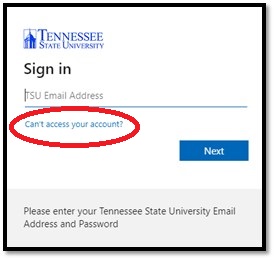
To reset your password, open a web browser and go to https://password.tnstate.edu .
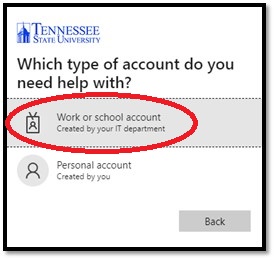
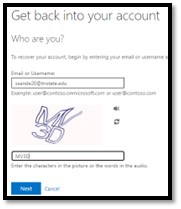
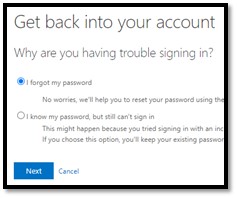
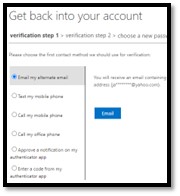
Enter your TSU email address and the captcha code. Once completed, select I forgot my password and follow the instructions. Password requirements consist of a minimum 16 characters that contain at least 1 uppercase letter, 1 lowercase letter, 1 number, and 1 symbol. Your name, birthdate, common phrases, and common number combinations (e.g. 123, 321) will not be accepted. Your password will be set for a maximum of 6 months. If you need further assistance, please contact the TSU IT Helpdesk @ 615-963-7777.